
Explained / News
What Are Passkeys? How They Work, Why They’re Safer and How to Use One
Passkeys let you sign in without memorizing a traditional password. Here is how the technology works, why it can resist phishing and what to know before using it.
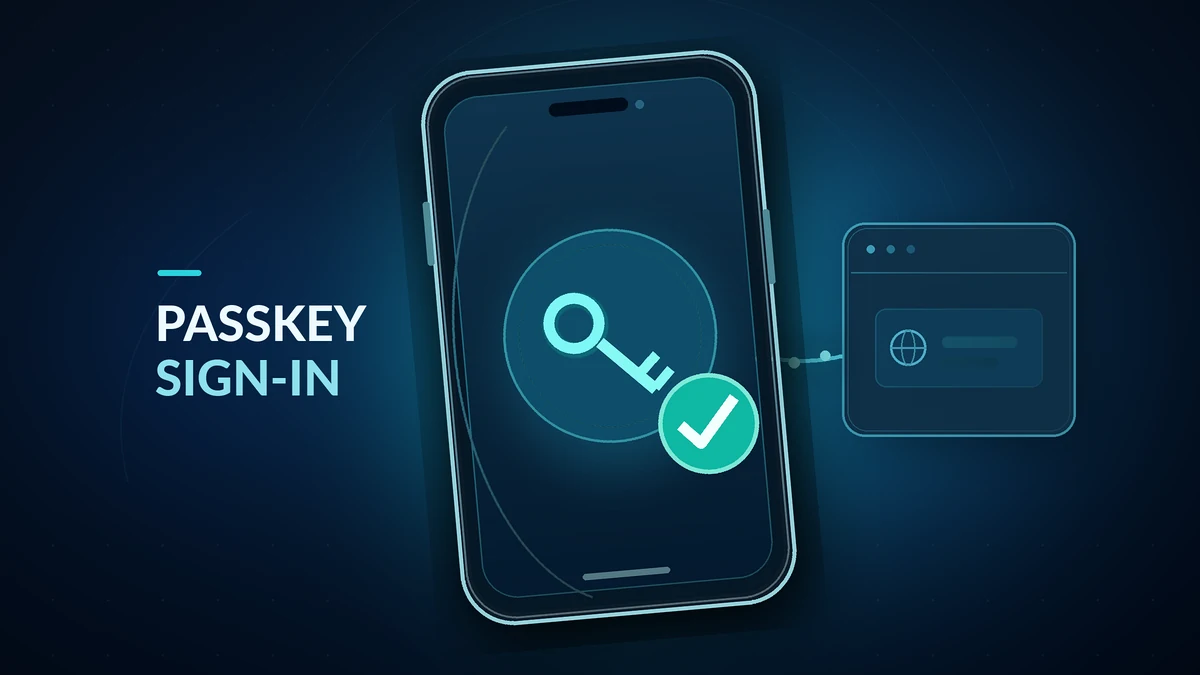
Short Article
A passkey lets you sign in to an online account without typing a traditional password.
It uses two related cryptographic keys. The website stores a public key, while your device or credential provider protects the private key.
During sign-in, you may approve the request using a fingerprint, face recognition or device PIN. These verification methods are not the passkey itself.
Properly implemented passkeys resist common phishing attacks because authentication is linked to the legitimate website or app.
Some passkeys synchronize across devices. Others remain tied to a particular device.
Passkeys can be safer and more convenient than passwords, but compromised devices, insecure recovery methods and other threats remain possible.
Before relying on one, check whether it is already registered, where it is stored and how you can recover account access.
Passkeys let you sign in to websites and apps without typing a traditional password. They use cryptographic credentials protected by a device or credential manager, making many common phishing attacks much harder.
Instead of remembering another password, you can often approve sign-in using a fingerprint, face recognition or device PIN.
But a passkey is not the same as your fingerprint, and it does not make an online account completely secure.
This guide explains how passkeys work, how they compare with passwords, how to use one with a Google Account, and what happens if you lose access to your device.
Watch: Passkeys explained by the FIDO Alliance
This in-depth FIDO Alliance primer, presented with IBM, explains the standards and the differences between passwords and passkeys. It is an educational background video, not a report of a newly released product.
Video: FIDO Alliance with IBM. Watch on YouTube.
What Is a Passkey?
A passkey is a digital credential that allows a website or application to authenticate access to an account without requiring a reusable password.
It uses public-key cryptography.
When a passkey is created, two mathematically related keys are generated:
- Public key: Registered with the website or service.
- Private key: Protected by the user’s authenticator, such as a device, security key or credential manager.
During sign-in, the authenticator uses the private key to produce cryptographic proof. The website checks that proof using the corresponding public key.
The private key itself does not need to be sent to the website.
This is different from a password, which is a reusable secret submitted to a service for verification.
Passkeys are based on standards developed by the FIDO Alliance and the World Wide Web Consortium, or W3C.
Important: A passkey proves control of a credential associated with an account. It does not independently verify the account holder’s legal name, age or real-world identity.
How Does Passkey Sign-In Work?
Imagine opening an online account that supports passkeys.
Instead of entering a password, you choose the available passkey sign-in option.
The website sends your browser an authentication request containing a unique challenge.
Your device or credential manager locates the passkey associated with that service. It may then ask you to approve its use through a fingerprint, face scan or PIN.
The authenticator creates a cryptographic response, which the website verifies.
The service also checks that the authentication response belongs to the appropriate website and request.
If those checks succeed, and any other required conditions are met, you can sign in.
The private key remains under the authenticator’s control during normal sign-in.
Is Your Fingerprint the Passkey?
No.
A fingerprint, face scan or PIN is often a way to authorize use of the credential.
The passkey is the cryptographic credential, not the biometric measurement.
Biometric verification is not always necessary. Depending on the device, a supported PIN or hardware security key may be used instead.
In common device-based implementations, biometric information stays on the device rather than being sent to the website as a login password.
The W3C WebAuthn specification describes the underlying authentication process.
Why Are Passkeys Resistant to Phishing?
Phishing involves tricking someone into revealing sensitive information, often through an imitation website or fraudulent message.
With traditional passwords, a fake login page may capture a password and allow an attacker to reuse it.
A properly implemented passkey is different.
The cryptographic credential is associated with the legitimate website or application. The browser and authenticator help enforce that connection.
An unrelated imitation website therefore cannot simply collect and reuse the passkey as if it were a typed password.
Passkeys also avoid ordinary password reuse across unrelated services.
These properties make them strongly resistant to common credential-stealing phishing attacks.
However, phishing-resistant does not mean immune to every form of fraud.
Passkeys do not independently prevent malicious software, compromised authenticated sessions, insecure account recovery or deceptive actions carried out after login.
The OWASP Passkey Security Cheat Sheet explains why correct implementation and account-lifecycle protections remain essential.
Passkeys vs Passwords vs Two-Factor Authentication
The three approaches differ in both convenience and security.
| Feature | Password only | Password + conventional 2FA | Properly implemented passkey |
|---|---|---|---|
| Normal sign-in | Enter password | Enter password and complete another check | Approve cryptographic sign-in |
| Phishing resistance | Limited | Improved, but many conventional methods remain phishable | Strong against common credential-relay phishing |
| Convenience | Password entry or manager | Usually an additional step | Often uses device unlock |
| Recovery | Service-dependent | Service-dependent | Service- and provider-dependent |
| Important limitation | Theft and password reuse | Weak or phishable second factors | Device, session and recovery risks remain |
In everyday language, adding conventional two-factor authentication to a password usually improves security. Using a properly implemented passkey can offer stronger protection against attacks that steal or relay login credentials.
That does not make every passkey deployment automatically superior to every other authentication system.
In April 2026, the United Kingdom’s National Cyber Security Centre published a comparison of traditional and FIDO2 credentials.
Its assessment found that FIDO2 credentials, including passkeys, offered security at least comparable to traditional multifactor methods across the common attack scenarios examined for personal use.
The assessment did not establish that every implementation or enterprise environment has identical security properties.
How to Use a Passkey With a Google Account
Google provides a practical example of passkey authentication.
The following instructions reflect Google’s official Account Help documentation, checked on November 18, 2026.
1. Check Whether Your Device Is Supported
Google lists support for compatible devices including:
- Android 9 or later, and iOS 16 or later.
- Windows 10 or later, macOS Ventura or later, and ChromeOS 109 or later.
- Compatible FIDO2 hardware security keys.
A supported browser is also required. Google’s documented minimums include Chrome 109, Safari 16, Edge 109 and Firefox 122.
Appropriate screen-lock protection must be enabled.
For supported Apple setups, iCloud Keychain may also be required.
Exact options can vary by device, operating system, browser and account type.
2. Check Whether a Passkey Already Exists
Open your Google Account’s official Passkeys page.
Google may ask you to verify that you are accessing the correct account.
Existing passkeys are shown in the account’s sign-in options.
You may not need to create one manually.
Google states that some Android devices already signed in to a Google Account may have passkeys automatically registered for that account.
Check the existing list before trying to add another credential.
3. Create a Passkey If Needed
If your account does not already have a suitable passkey and your device supports the feature, use Create a passkey on Google’s Passkeys page.
Follow the on-screen instructions and unlock your device when requested.
Google also supports passkeys created on compatible FIDO2 hardware security keys.
The available prompts depend on the device and credential provider.
Google notes that a newly created passkey may sometimes take up to seven days to become available for sign-in, depending on the account’s trust conditions.
For school or workplace Google Workspace accounts, an administrator may control whether passkeys can be used as the primary sign-in method.
4. Sign In Using the Passkey
Open the Google sign-in page and enter your account identifier if requested.
If a passkey is available, select it or follow the passkey prompt provided by your browser and operating system.
Approve the request using your device’s supported verification method.
Google verifies the authentication response before granting access.
The familiar experience is often as simple as unlocking your device.
5. Use Your Phone to Sign In on a Computer
In supported situations, you can use a passkey on your phone to sign in on another computer.
On Google’s sign-in screen, select Try another way, followed by Use your passkey, where those options are presented.
The computer may display a QR code.
Scan it using your phone, follow the phone’s sign-in prompt and complete the device verification.
Google specifies that Bluetooth should be enabled for this cross-device process.
Not every device combination presents identical steps.
6. Review Password and Recovery Settings
Creating a Google Account passkey does not automatically delete existing passwords, authentication factors or recovery methods.
Google generally offers a passkey-first experience while retaining supported alternative sign-in choices.
The Skip password when possible setting controls the default sign-in preference for eligible personal accounts.
Before depending on passkeys, review the devices with access to your account and understand the available recovery methods.
Only create passkeys on devices you personally own and trust. Google warns that someone capable of unlocking a device may be able to use its passkey to access the associated account.
For current account-specific instructions, consult Google Account Help.
Can Passkeys Work Across Multiple Devices?
Yes, but passkeys are not all stored in the same way.
Synced passkeys
A synchronized passkey may be available across trusted devices through a credential provider.
This can make it easier to use a phone and computer or replace a device.
The provider is responsible for protecting the synchronized credential. Its encryption, account security and recovery procedures matter.
Device-bound passkeys
A device-bound credential remains associated with a particular device or hardware security key rather than being synchronized to other devices.
This gives greater control over where the credential exists, but loss of the only usable device may complicate recovery.
Terminology is not completely uniform. The FIDO Alliance and OWASP recognize both synced and device-bound passkeys, while the UK National Cyber Security Centre uses a narrower definition of passkey that emphasizes synchronization.
The practical distinction is more important than the label: understand where the credential is stored and whether it can be used elsewhere.
Are Passkeys Multifactor Authentication?
They can provide multifactor authentication properties, but not automatically in every situation.
Multifactor authentication combines evidence from different categories, such as something a person has and something they know or are.
A cryptographic credential protected by an authenticator can represent possession.
When that authenticator also verifies the user locally through a qualifying PIN or biometric check, the process can provide an additional factor.
However, the relying service must request and check the relevant user-verification result. Merely using a device that supports fingerprint scanning is not enough to conclude that every authentication event was multifactor.
The US National Institute of Standards and Technology distinguishes authentication with verified local user verification from authentication without it.
This is one reason careful comparisons should refer to the actual authentication process, rather than assuming all implementations behave identically.
What Happens If You Lose Your Device?
Losing a phone or computer does not necessarily mean losing access to every passkey.
If a credential is synchronized through a supported provider, it may become available on a replacement device after the provider’s security and recovery requirements are satisfied.
If the credential is device-bound, access may depend on another registered authenticator or the service’s recovery options.
For a Google Account, the response depends partly on how the passkey was registered.
Google documents removal of manually created passkeys through account security settings. Automatically registered Android credentials may instead need to be addressed through the account’s device-management and sign-out controls.
If a device is lost or stolen, Google advises removing the affected credential or device access from an available trusted session.
It is also sensible to review existing sessions and other authentication methods.
A compromised device or authenticated session can remain a security problem even when passkeys are used.
For important accounts, the best preparation is to understand the supported recovery process before a device goes missing.
What Are the Main Security Limitations?
Passkeys reduce the risks of password theft, password reuse and many common phishing attacks.
They do not eliminate all account-security problems.
Remaining concerns include compromised devices, stolen sessions, poorly protected credential-provider accounts, weak account-recovery procedures and vulnerable applications.
Older login or fallback methods may also remain available even after a passkey is added.
These issues deserve attention because attackers may target whichever part of an account is easiest to compromise.
The correct conclusion is not that passkeys guarantee safety. It is that they improve important parts of authentication when the wider system is implemented responsibly.
Will Passkeys Replace Passwords Everywhere?
Passkeys are supported by major operating systems, browsers and credential providers, but websites are adopting them at different speeds.
Some services offer passkeys alongside passwords. Others increasingly prioritize passwordless sign-in.
Standards development has also continued.
On August 25, 2026, W3C published Web Authentication Level 3 as a Recommendation, an important milestone for the web authentication standard.
Adoption still depends on compatibility, accessibility, usable recovery methods and whether people trust and understand the process.
Passwords are therefore unlikely to disappear from every service at once.
The Bottom Line
Passkeys offer a more convenient way to authenticate and stronger resistance to common credential-stealing phishing attacks.
They do not independently prove someone’s real-world identity, and their benefits depend on correct implementation and secure account management.
If a service supports passkeys, they are worth considering. Before relying on one, check whether it is already registered, where it is stored, how you would recover access and which older sign-in methods remain available.
ARTICLE REFERENCES
Sources & Links
Explore the original resources and supporting documents.
- FIDO Alliance official passkeys overview and FAQfidoalliance.org
- FIDO Alliance how passkeys workpasskeys.dev
- W3C Web Authentication standardw3.org
- FIDO Alliance passkeys explainer videoyoutube.com
- FIDO Alliance in-depth passkeys video with IBMyoutube.com
- UK National Cyber Security Centre: FIDO2 security comparisonncsc.gov.uk
- NIST Digital Identity Guidelines: Syncable Authenticatorspages.nist.gov
- OWASP Passkey Security Cheat Sheetcheatsheetseries.owasp.org
- Google Account Help: Sign in with a passkeysupport.google.com
- Google Account Help: Passwords and passkeys across devicessupport.google.com
- Passkeys pagemyaccount.google.com
External references open in a new tab. Please review the information at its original source.










AVIRALON NEWS / COMMUNITY
Comments (0)
Comments are moderated. Your comment will be reviewed by the AVIRALON editorial team before appearing publicly. Please keep the discussion respectful and relevant.
No approved comments yet.
Commenting will open after moderation and privacy checks are completed.